
Steps for Creating Pillar Directory Pages
Table Of Content
Step 1: Create Branded Images in Canva
Section 1: Creating Branded Square Images
- Open up Canva
- Create a set of 10 new branded square images. A template will be available for each client. Make a copy of the template
- Dimension is 650 x 650 px
- File name of the file is as followed: Directory Square Near Location - Name of Client - Location
- Example: Directory Square Near Chatsworth - Evan Guston Photography - Calabasas, CA
- Note: Location is the city we are focusing on for this Directory Page
- Name of each image is as followed: Keywords Near Location - Name of Client - Location
- Example: Best Mitzvah Photographer Near Chatsworth - Evan Guston Photography - Calabasas, CA
- Download the branded images as a PNG file (it will come down as a zipped file)
- Locate the zipped file and extract it
- Upload the individual extracted files to GHL under the Media Storage. You will choose the niche folder and put it in the Square folder. 5 of the images will be used in the Sponsored Section. The rest can be used in the Featured Client Section
Section 2: Creating Directory Banner
- Open up Canva
- Create a directory banner. A template will be available for each client. Make a copy of the template
- File name of the file is as followed: Directory Banner Images Near Location - Name of Client - Location
- Example: Directory Banner Images Near Chatsworth - Evan Guston Photography - Calabasas, CA
- Note: Location is the city we are focusing on for this Directory Page
- Name of the image is as followed: Keywords Near Location - Name of Client - Location
- Example: Best Mitzvah Photographer Near Chatsworth - Evan Guston Photography - Calabasas, CA
- Download the branded banner image as a PNG file
- Upload the file to GHL under the Media Storage. You will choose the niche folder and put it in the Banner folder
Step 2: Clone and Prepare the Directory Template
- Go to the niche you are working on
- Find the first Pillar Page listed under that niche
- Click on the 3 dots located on the top right and choose Clone
- After the page is cloned, select the cloned version
- Click on Settings to rename the page:
- Naming format: Keywords near Location
- Example: Best Mitzvah Photographer near Calabasas
- Click on the blue button and choose Edit in New Tab
- You will now begin updating this page using the code from the generators below. This cloned page will now be referred to as your Pillar Page.
Step 3: Add Images to the Sponsored Section
- Click on the Button – Click on the "Sponsored Section Generator" button above.
- Get the Image URL from GHL:
- Go to GHL (Go High Level).
- Hover over the image you want to use.
- Click on the three dots (⋮) that appear.
- Select "Get URL" and copy the URL.
- Paste the URL – Go back to the form and paste the copied URL into the "URL" section.
- Enter the Alt Description – Follow this format:
- Keywords Near Location - Name of Client - Location
- Example: Best Mitzvah Photographer Near Chatsworth - Evan Guston Photography - Calabasas, CA
- Complete the Form – Fill in any remaining details and submit.
- Copy the code – Copy the code and paste in the Pillar Page.
- Select the first <>Custom HTML/Javascript code.
- On the left side, click on Open Code Editor
- Paste the code and hit the Save blue button
Step 4: Run the Directory Hero Generator
- Run the Directory Hero Generator
- Generate the details for the Hero Generator by clicking ChatGPT Directory Hero Generator.
- The generator will prompt you for:
- Keyword
- Industry
- Location
- It will then generate a Title, Subtitle, and CTA (Call-to-Action).
- Paste the Generated Content
- Copy the Title, Subtitle, and CTA from the generator.
- Paste them into the Directory Hero Generator form.
- Get the Google Map URL for the Featured Client
- Use the table below to find the client and copy their Google Map URL (if available).
Client Google Map SoCal Climate Control View Map IRC Roof Solutions View Map Honest Spices The Coronado Flower Lady Practice Sales & Appraisals View Map Chaplin Public Adjusting View Map Blayne Pacelli - Rodeo Realty View Map Hovee's Autobody & Paint View Map David Slater Injury Law Firm View Map Rainbow Restoration of Northridge View Map Rainbow Restoration of Seal Beach View Map SERVPro of San Gabriel View Map Supreme Mechanical Corp View Map TM Scrap Metals View Map Locksmithology View Map We Help You Host View Map Joe Montague Agency View Map Quality Roof & Maintenance View Map - Get the Form Embed Code from GHL
- Go to GHL (Go High Level).
- Navigate to Sites → Forms.
- Select the correct form for the niche you are working on.
- Open the form and click Integrate.
- Click Copy Embed Code and paste it into the form.
- Add a Background Image
- Use the image uploaded in Step 1.
- Go back to GHL, locate the uploaded image, and copy its URL link.
- Paste the image URL into the form.
- Insert the Generated Code into the Pillar Page
- Once the code is generated, copy and paste it into the Pillar Page.
- Select the second "<> Custom HTML/Javascript Code" option.
- On the left side, click Open Code Editor.
- Paste the code and click the blue "Save" button.
Step 5: Generate Blog Section
1. Run the Directory Blog Generator
- Click here to run ChatGPT Directory Topic Blog Generator
2. Provide Required Information
- Enter your Keywords
- Specify the Location
- For blog type, select "Why hire a professional..."
3. Generate the Blog Content
- Allow the AI to generate the complete blog content
- Review the content to ensure it meets your requirements
4. Implement the Blog on Pillar Page
- Copy the generated code
- Navigate to your Pillar Page
- Locate the section labeled "Blog"
- Paste the code into this section
5. Save Your Changes
- Click the Save button to apply the changes
- Verify that the blog displays correctly on your page
Step 6: Generate Featured Client Section
Update Client Images & Alt Text
- Go to GHL (Go High Level) and copy the client images you created in Step 1.
- Important: Use images that are different from those used in the Sponsored Section.
- Paste the images into the Featured Client Section HTML already in the Pillar Page.
- Update the
alttext for each image using the format:
Primary Keyword near Location – Client Name
Example: scrap metals near Altadena, CA – TM Scrap Metals
Step 7: Generate Competitor Section
1. Open the Directory Listing Card Generator
- Click the Directory Listing Card Generator button inside the AI tool
- Provide the following when prompted:
- City or Service Area (e.g., "Sun Valley, CA")
- Primary Keyword (e.g., "scrap metal recycling")
- Client Business Name (this will be excluded from the listings)
2. Automatic Competitor Discovery
- The AI will search for 4 businesses relevant to the keyword in the target city
- If fewer than 4 are found, the AI will pull from nearby cities
- Only businesses with a valid website URL will be included
- The client business will be excluded automatically
3. Preview Business Listings
- The AI will display the business information in plain text format first
- Review the data to ensure accuracy and relevance
- If anything looks off, restart the generator or edit the input
4. Generate Directory Code
- Once you approve the listings, the AI will generate a full code bundle
- This includes HTML, CSS styling, and JSON-LD Schema
- All businesses will be displayed inside a styled .directory-listing container
5. Add Code to Pillar Page
- Copy the generated code
- Go to your Pillar Page editor
- Locate the Competitor Section
- Paste the code into that section and save
Step 8: Generate Directory Map
1. Run the Directory Map Generator
- Click the Directory Map Generator button above in the AI interface
2. Generate Content with AI
- Use AI to generate the header, subheader, and CTA
- You will need to provide:
- Primary keyword
- Location
3. Update Map Section Content
- Go to the GHL Pillar Page
- Navigate to the Map Section
- Update the following elements:
- Header
- Subheader
- CTA (Call-to-Action)
4. Update Map Location
- On the same page, locate the map element
- Update the map to display the correct location for your directory
5. Save Your Changes
- Ensure all content is properly updated
- Save the changes to the Pillar Page
- Verify that the map displays correctly with the updated content
Step 9: Add Services to the Other Services Section
1. Open the Pillar Page
- Navigate to the appropriate Pillar Page where you want to add services.
2. Scroll to the "Other Services" Section
- Find the section labeled Other Services near the bottom of the page.
3. Enter Services or Keywords
- Type in relevant services or keyword phrases (e.g., Auto Paint, Bumper Repair).
- Each service should be brief and to the point.
4. Add a Link to Each Service
- Highlight each keyword or service name.
- Click the link icon (or use
Ctrl+K/Cmd+K). - Insert the URL that links to the corresponding service page.
5. Limit to Five Services per Row
- Only include five services per row for readability.
Step 10: Generate FAQ Section
1. Run the FAQ Generator
- Click the FAQ Generator button above in the AI interface
2. Provide Required Information
- Enter the niche or industry when prompted
- Allow the AI to generate frequently asked questions and answers
3. Copy the Generated Code
- Once the AI has completed the task, review the generated content
- Copy the entire code generated by the FAQ Generator
4. Navigate to the FAQ Section
- Go to your Pillar Page
- Locate the FAQ section
5. Update and Save
- Open the code editor for the FAQ section
- Paste the generated code
- Save your changes
- Verify that the FAQ section displays correctly
Step 11: Generate Weather Widget
1. Navigate to Weather Widget Generator
- Click the Weather Widget Generator button above in the AI interface
2. Enter Your City
- In the input box at the top:
- Type the name of your city (e.g.,
San Diego, CA) - Click the correct location from the dropdown list that appears
3. Customize the Widget
- Click on the Customize button
- Update the color settings to match the client's brand colors
- Click on the Get Code button
- Click Copy to Clipboard to save the code
4. Implement the Widget
- Go to your Pillar Page
- Navigate to the Weather Section
- Paste the copied code
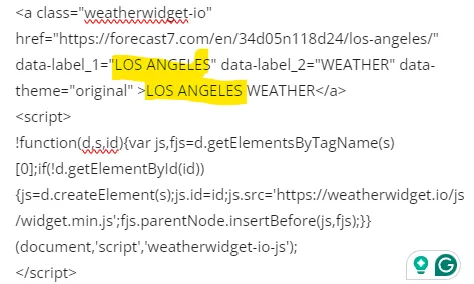
- If the city is a part of Los Angeles:
- Look at the pasted code and find any instances where Los Angeles is mentioned
- Change these highlighted words to the specific city name (e.g., Sherman Oaks, Encino, etc.)
- Click Save to apply the changes
Step 12: Directory City Generator
1. Click the Directory City Generator Button
- Click the Directory City Generator button above in the AI interface
2. Follow the AI Instructions
- The AI will guide you through the steps needed to generate the correct directory code
3. Copy the Generated Code
- Once the code appears, click Copy to Clipboard
4. Look Up the City on Wikipedia
- Go to wikipedia.org
- Type the name of the city (e.g., “Sun Valley, California”) into the search bar
- Click on the correct article and copy the URL from your browser
5. Go to Your Pillar Page
- Open the Pillar Page where the city content should be added
6. Paste the Directory Code
- Scroll to the City Section on the Pillar Page
- Paste the previously copied directory code
7. Update the Wikipedia Link
- Find the Wikipedia link placeholder in the city section (if one exists)
- Replace it with the correct Wikipedia URL you copied in Step 4
- Ensure the link opens in a new tab (use
target="_blank")
8. Save Your Changes
- Click Save to apply all updates to the Pillar Page
Step 13: RSS FEED Generator
1. Get the RSS Feed URL
- Only do this step if you do not currently have the RSS FEED URL extensions.
- Go to Chrome store and add GET RSS FEED URL
- Open up Google news
- In the Search Box, type in the keyword(s) and the location and hit ENTER
- note, if nothing show up, you may have to extend the location to the state such as California
- Click on the RSS FEED URL extension and click on the COPY URL orange button
2. Click the RSS Feed Button
- Click the RSS FEED GENERATOR button above in the AI interface
- Paste the URL of the RSS FEED you are wanting to add
- Add the Title of the RSS Feed: Example: Restoration Services in Anaheim and Surrounding Areas. (Note, Restoration services is the keyword and Anaheim is the location)
- Paste the hex code. Example: #1b4b7f
3. Copy the Generated Code
- Once the code is created, click Copy Code
4. Go to the Pillar Page
- Open the Pillar Page associated with this content
5. Paste the Code into the RSS Feed Section
- Scroll down to the RSS FEED Section
- Paste the copied code
6. Save and Publish Again
- Click Save to apply the changes
- Then click the Publish button again to update the live page
Step 14: Publish the Site
1. Click Save
- Make sure all content is completed, then click Save
2. Update the SEO Meta Data
- Go to the SEO Settings section of the page
3. Enter the Title
- Set the Title to the name of the webpage
- Example:
Auto Repair Near Chatsworth
4. Write the Description
- The Description should start with the title
- Then add:
Directory of [niche] including [client name]
5. Enter the Keywords
- Add these as keywords:
- Primary keyword
- Primary keyword + location
- Location only
6. Set the Author
- Set Author as
Media Vines Corp
7. Verify the Social Image
- Ensure the Social Image is already set
8. Add Custom Meta Tags
- Generate the meta tag by Clicking on Meta Description Generator to generate a meta description
- copy the content
- Under Links & Tags, do the following:
- Delete the current meta tags
- Click on +Add button under the Custom Meta Tags.
- Type Description for NAME and
- Copy the generated meta description in the CONTENT section
9. Add the Canonical Link
- Copy the current Webpage URL and paste it into the Canonical Link field
10. Click the Update SEO Meta Button
- Click the Update SEO Meta blue button to save your SEO settings
- if you do not not see the blue button: click on Language and click on TAB twice and you should see the blue button.
11. Final Publish Actions
- Click the Save button again
- Then click the Publish blue button
- Finally, click on the Webpage Link to view the live page
Step 15: JSON Schema
1. Click the JSON Schema Generator Button
- Click the JSON Schema Generator button above in the AI interface
- Then click the Start to Begin button
2. Enter Business Information
- Follow the instructions provided by the AI
- Enter the Business Name and the Webpage URL of the Pillar Page
3. Verify the Script Tag
- Make sure the generated schema code includes the
<script type="application/ld+json">tag at the beginning
4. Copy the Generated Code
- Click Copy Code to copy the entire schema block
5. Add the Code to the Pillar Page
- Open the Pillar Page associated with this business
- Scroll down to the JSON Schema Section
- Paste the copied code into the designated area
6. Save and Publish Again
- Click Save to apply your changes
- Then click the Publish button to update the live page
Step 16: Link the City to the Pillar Page
1. Go Back to the Home Page
- In the website editor, navigate to the Home Page
- Open the City Section where all city names are listed
2. Check if the City Already Exists
- Look through the list to see if the City Name you're working on is already there
- If it is there, highlight the city name
- Add the link to the Pillar Page using the hyperlink option
3. If the City is Not Listed
- Click to add a new city to the list
- Type the City Name exactly as used on the Pillar Page
- Highlight the new city name and add the Pillar Page link
4. Save and Publish
- Click the Save button to store your changes
- Then click the Publish button to make the updates live